Are you applying to dozens of IT and Government jobs but not getting any interview calls? The problem might not be your skills—it might be Applicant Tracking Systems (ATS).
In 2026, over 95% of Fortune 500 companies and top Indian IT giants that hire freshers off-campus — TCS, Infosys, and Wipro among them — use ATS bots to scan resumes before a human HR manager even sees them. If your resume isn’t formatted correctly, the bot will reject it automatically.cally.
Here is your ultimate guide to building a 100% ATS-friendly resume that guarantees more interview calls.
What is an ATS (Applicant Tracking System)?
An ATS is a software application that enables companies to handle recruitment electronically. When you upload your PDF or Word document, the ATS scans it, strips away the formatting, and reads the raw text to look for specific keywords matching the job description.
If you have a fancy resume with columns, graphics, and custom fonts, the ATS gets confused and reads your data as gibberish, resulting in instant rejection.
Myth vs. Reality: Many candidates believe ATS software “scores” and auto-rejects resumes below a certain threshold. In most modern systems, ATS doesn’t reject you directly — it parses and ranks your resume so recruiters can search and filter candidates faster. The real risk isn’t a robot judging you unfairly; it’s bad formatting causing your information to be misread or lost entirely before a human ever sees it.
5 Golden Rules for an ATS-Friendly Resume
1. Say NO to Columns, Graphics, and Tables
Modern, two-column resume designs look great to humans but are terrible for bots. Most ATS software reads from left to right, top to bottom. If you use columns, the bot will read across both columns simultaneously, jumbling your information.
It’s not just columns — tables are just as risky. Freshers often use tables to organize skills (e.g., a “Languages | Frameworks | Tools” grid). ATS parsers can misread table cells out of order or skip them completely.
- Fix: Use a standard, single-column layout. List skills as plain text with simple line breaks or commas:
Languages: Python, Java, C++
2. Use Standard Fonts
Stick to standard, highly readable fonts. If the ATS doesn’t recognize a custom font, it may replace the text with blank squares.
- Best Fonts: Arial, Calibri, Garamond, Times New Roman, or Helvetica.
- Size: 10-12pt for body text, 14-16pt for headings.
3. Keep Headings Simple
Don’t get creative with your section titles. The ATS looks for specific words to categorize your information.
- Use “Work Experience” instead of “My Professional Journey”.
- Use “Education” instead of “Academic Background”.
- Use “Skills” instead of “What I Bring to the Table”.
4. Optimize with Keywords
The ATS ranks your resume based on how well it matches the job description.
- Pro Tip: Read the job description carefully. If they ask for “Object-Oriented Programming,” write exactly that. Do not write “OOP” unless the abbreviation is also in the job description.
5. Save in the Right Format
Always check the file types accepted in the job application. If they accept both, PDF is usually best because it preserves your layout, but ensure it is a text-based PDF (you should be able to highlight the text). If the system specifically asks for a Word Document (.docx), follow that instruction—some older ATS systems still prefer Word.
Name your file properly. Save it as FirstName_LastName_Resume.pdf (e.g., Rahul_Sharma_Resume.pdf) rather than generic names like Resume_Final_v3.pdf. Recruiters often download dozens of resumes, and a clear filename makes you easier to find and looks more professional.
Standard ATS-Friendly Resume Structure
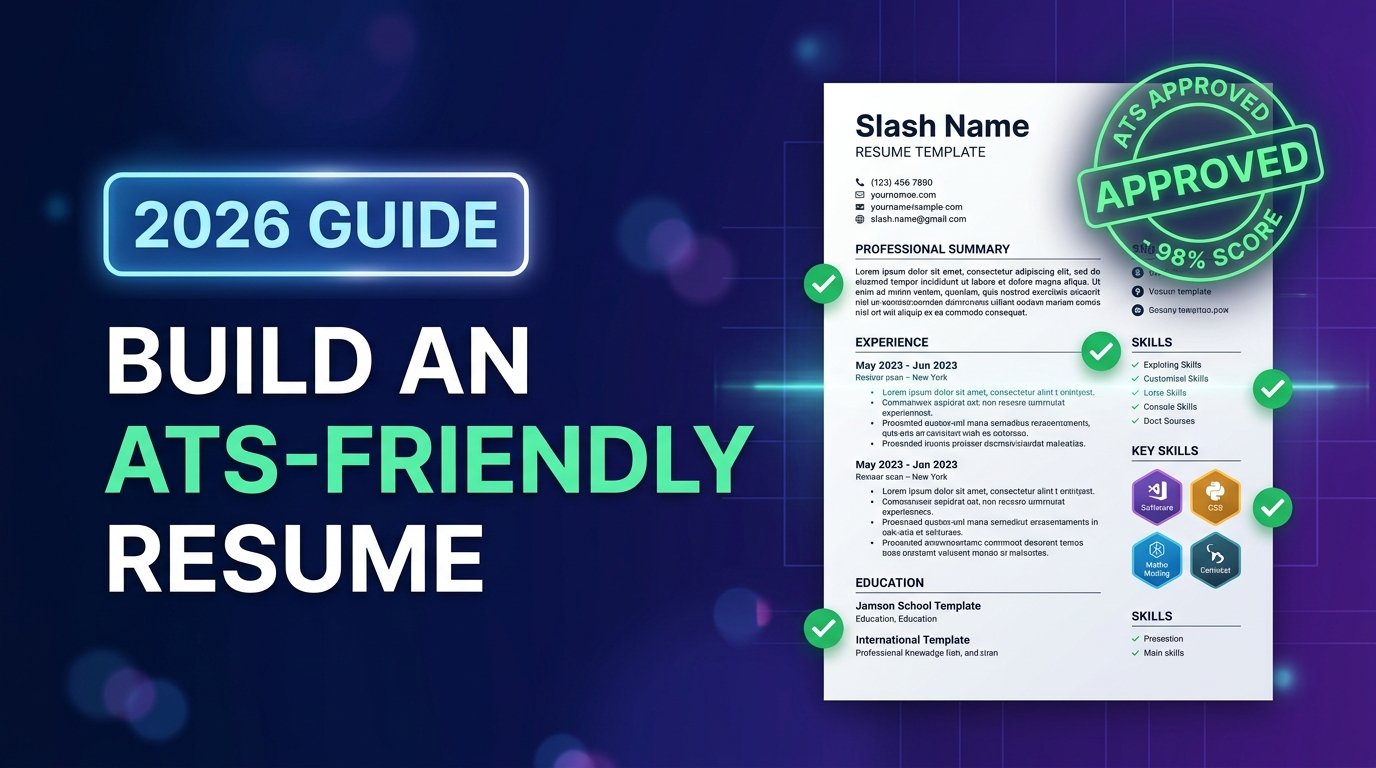
If you are a fresher, organize your resume in this exact order:
- Contact Information: Name, Phone, Email, LinkedIn/GitHub URL. (Do not put this in the document header/footer, the ATS might miss it).
- Professional Summary: 2-3 lines highlighting your core skills and career objective.
- Education: Degree, College Name, Year of Passing, CGPA or percentage — convert it correctly, because IT and government recruiters apply different cut-off formulas.
- Technical Skills: Group them (e.g., Languages, Frameworks, Tools).
- Projects: Title, Tech Stack used, and 2-3 bullet points explaining what you built and the impact.
- Pro Tip: Start every bullet point with a strong action verb — Developed, Implemented, Designed, Automated, Led — instead of passive phrases like “Was responsible for.” This helps both the ATS keyword match and makes a stronger impression on the human reader who sees it next.
- Certifications & Achievements: (Optional but recommended).
If you want to see this structure filled in rather than described, our ATS resume format for fresher software engineers walks through a complete worked example, section by section.
Free ATS-Friendly Resume Templates
You don’t need to pay for a premium builder to get an ATS-safe layout. Here are solid free options:
- Google Docs: Go to File → New → From Template Gallery, and choose “Serif” or “Coral” — both are single-column and easy to strip down further. Delete any sidebar sections and keep everything in one vertical flow.
- Canva: Search “ATS Friendly Resume” specifically (not just “Resume”). Avoid templates with icons replacing text, dark backgrounds, or multi-column layouts — even if labeled ATS-friendly, double-check by copy-pasting the text into a plain text file to confirm it comes out readable and in order.
- Microsoft Word: Use the built-in “Simple” or “ATS” resume templates under File → New, which are built on single-column, standard-font layouts by default.
- Overleaf (LaTeX): Popular among engineering and CS freshers for its clean, professional look. Some good starting templates:
- Awesome-CV — modern, minimal, and highly customizable.
- Deedy Resume — originally two-column, but you can easily edit it to a single-column layout for better ATS compatibility.
- RenderCV — a newer YAML-based tool that generates ATS-friendly LaTeX resumes with minimal formatting fuss.
Important caveat for LaTeX users: While LaTeX resumes look extremely polished, some default templates use icons, multi-column layouts, or custom fonts for section headers (like FontAwesome icons for email/phone) which can trip up ATS parsers. Before submitting:
- Stick to single-column templates only.
- Avoid icon fonts for contact details — use plain text instead (“Email: ” not an envelope icon).
- Always test-export your final PDF and try copy-pasting the text into a plain
.txtfile — if the text comes out garbled or in the wrong order, the ATS will see the same thing.- Avoid custom LaTeX fonts; stick to defaults like Computer Modern or add
\usepackage{lmodern}for a cleaner, more standard look.
- Pro tip: LaTeX resumes are great for showing technical proficiency (some recruiters at product-based companies notice and appreciate a well-formatted LaTeX resume), but if you’re applying to large IT services companies with heavy ATS reliance (TCS, Infosys, Wipro, Accenture), a well-structured Word/Google Docs resume is often the safer bet since it’s guaranteed plain-text parsing. For TCS specifically, it also helps to know how the TCS NQT syllabus and eligibility rules work before you tailor your resume to it.
Frequently Asked Questions
Does ATS reject PDF resumes? No, most modern ATS software reads PDFs just fine — as long as it’s a text-based PDF (not a scanned image). If you’re able to highlight and copy text from your PDF, the ATS can read it too.
Is a one-page resume necessary for freshers? Yes, for most freshers one page is ideal. Recruiters and ATS systems both favor concise resumes, and with limited work experience, one page is usually enough to cover education, skills, and projects effectively.
Do I need a different resume for every job? Not a completely different resume, but you should tweak your keywords and skills section to match each job description closely. This small adjustment can meaningfully improve your ATS match score.
Can I use a photo on my resume? For most IT and corporate roles in India, a photo isn’t required and can sometimes confuse ATS parsing if placed in a header or table. Skip it unless the specific job posting asks for one.
Final Thoughts
Your resume’s only job is to get you an interview. By keeping it simple, clean, and keyword-optimized, you significantly improve your chances of clearing ATS screening and getting your skills in front of a real hiring manager — at which point the work shifts to the HR interview questions freshers are actually asked.
Looking for your first job? Head over to our Jobs section to apply for the latest openings for freshers — including current software engineering drives such as the Amazon SDE opening in Bengaluru and the Genpact off-campus SDE drive. If you would rather work remotely, we also track work-from-home roles open to freshers.

Engineering graduate and founder of FreshersJob4U. I write detailed job guides, interview prep resources, and career roadmaps for freshers and early-career professionals in India. This site started from my own experience with the scattered, confusing fresher job search — I wanted to build something cleaner.